
Windows Subsystem for Linux
Windows Subsystem for Linux (WSL) is a compatibility layer for running Linux binary executables (in ELF format) natively on Windows 10, Windows 11, and Windows Server 2019.
In May 2019, WSL 2 was announced, introducing important changes such as a real Linux kernel, through a subset of Hyper-V features. Since June 2019, WSL 2 is available to Windows 10 customers through the Windows Insider program, including the Home edition. WSL is not available to all Windows 10 users by default. It can be installed either by joining the Windows Insider program or manual install.
You can:
- Choose your favorite GNU/Linux distributions from the Microsoft Store.
- Run common command-line free software such as grep, sed, awk, or other ELF-64 binaries.
- Run Bash shell scripts and GNU/Linux command-line applications including:
- Tools: vim, emacs, tmux
- Languages: Javascript/node.js, Ruby, Python, C/C++, C# & F#, Rust, Go, etc.
- Services: sshd, MySQL, Apache, lighttpd
- Install additional software using own GNU/Linux distribution package manager.
- Invoke Windows applications using a Unix-like command-line shell.
- Invoke GNU/Linux applications on Windows.
More info about this can be found at Windows Subsystem for Linux Installation Guide for Windows 10.
Installing WSL
Start by opening an elevated Powershell window. To install WSL just enter the following command:
wsl --install
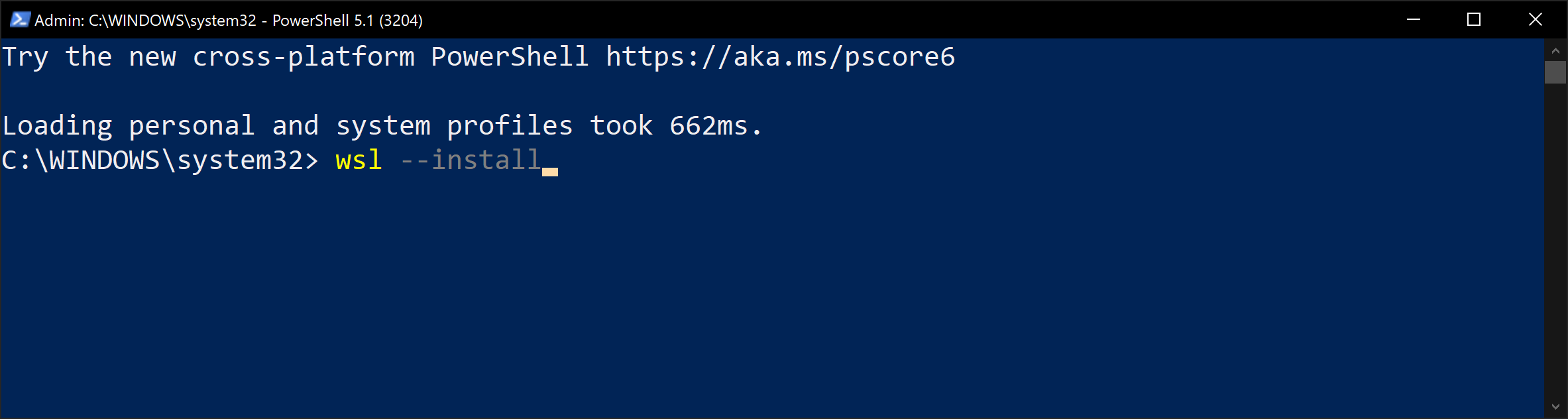
Once finished you will need to restart your computer.
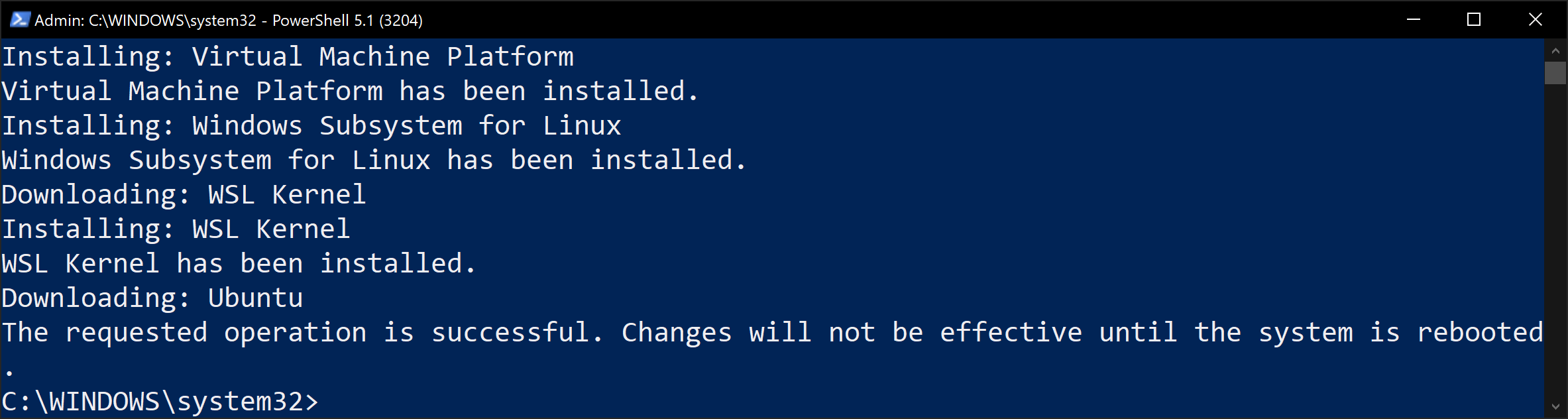
Install Ubuntu
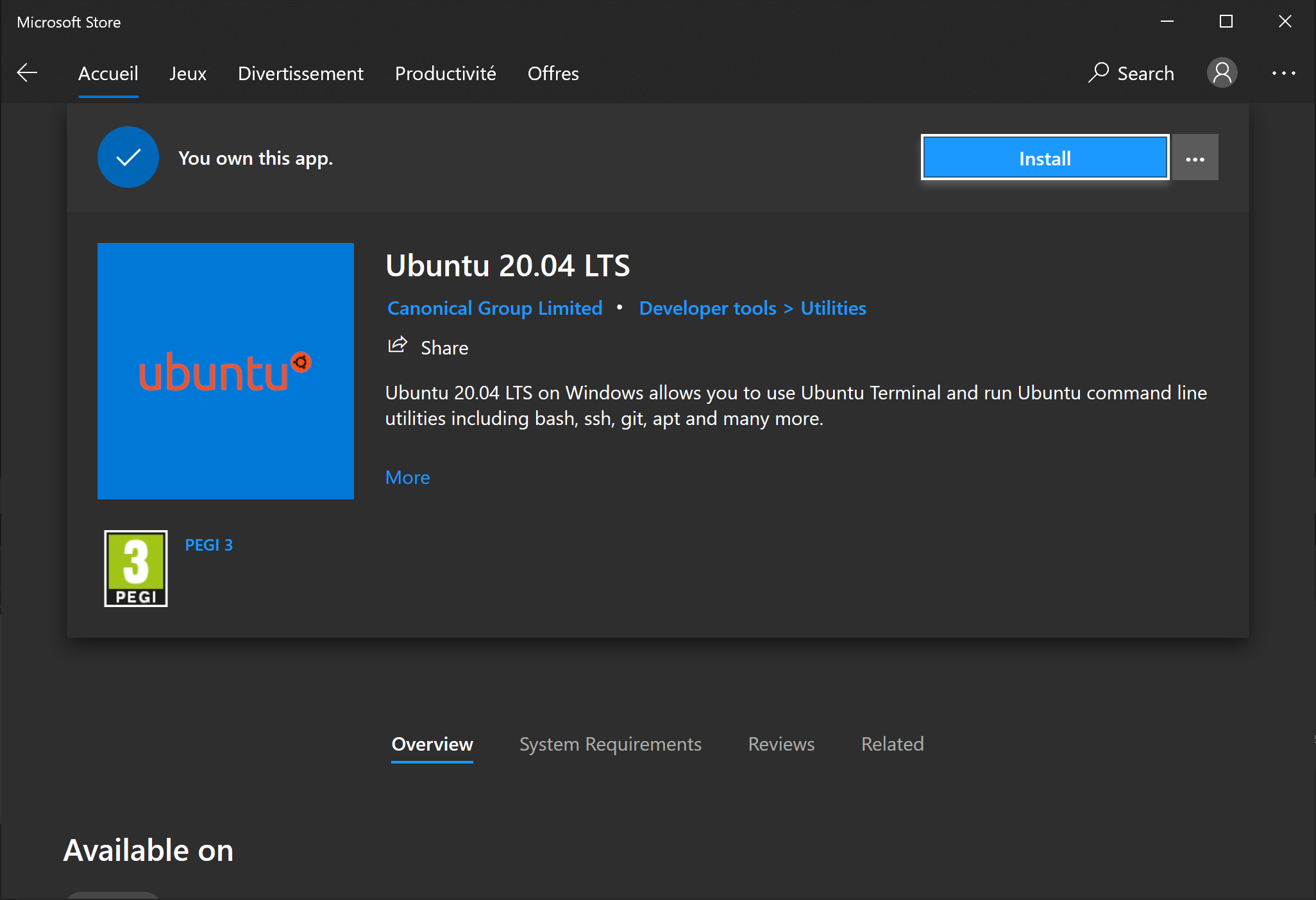
To install an Ubuntu machine, just open the Microsoft Store and search for Ubuntu. Now you can choose between 18.04 LTS or 20.04 LTS.
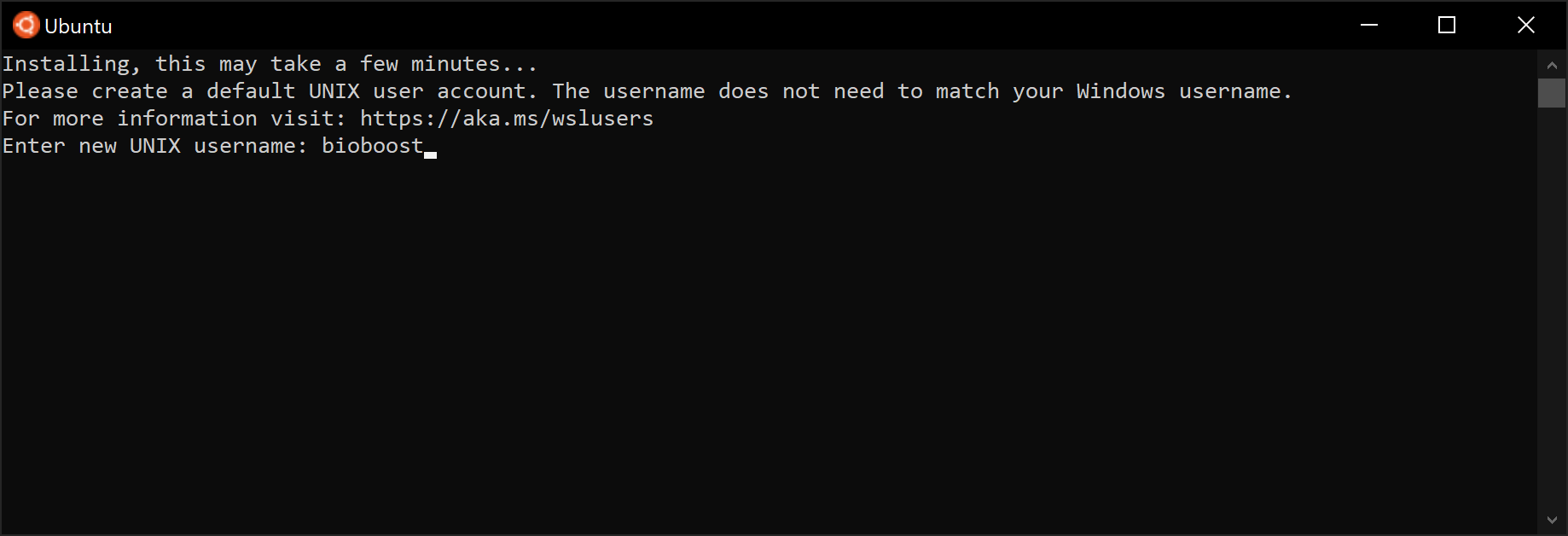
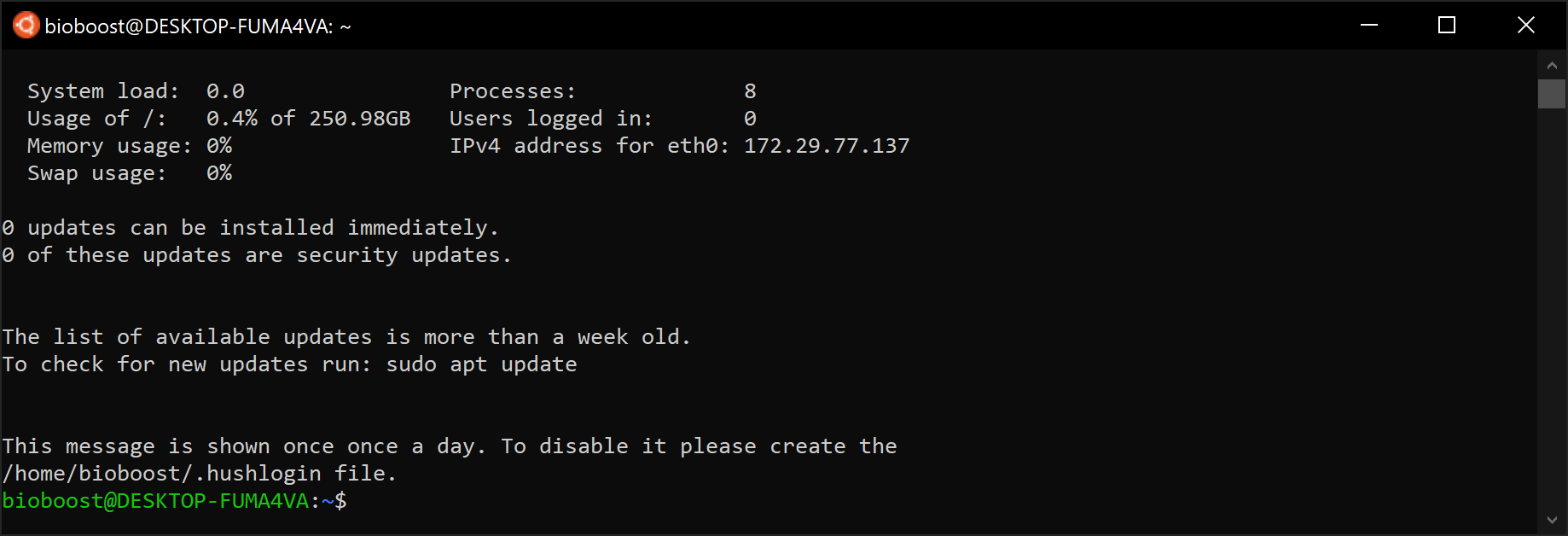
Once installed you will be requested to enter a username and password.
You are now running Linux on Windows.
Forgot Your Password ?
Shame on you.
When you start a WSL distro for the first time, it opens a console window with a progress bar. After a moment of waiting, you will be prompted to type a new user account name, and its password. This account will be your default WSL user account that will be used to sign-in automatically every time you run the current distro. Also, it will be included in the 'sudo' group in order to allow it to run commands elevated (as root).
Each Linux distribution running on the Windows Subsystem for Linux has its own Linux user accounts and passwords. You will have to configure a Linux user account any time you add a distribution, reinstall, or reset. Linux user accounts are not only independent per distribution, they are also independent from your Windows user account.
To reset the default user's password, follow these steps:
- Change the default user name for your WSL distro to root. Use the following command:
ubuntu config --default-user root
- Launch your Linux distribution.
- Reset your password using the
passwdcommand
passwd <username>
- Leave your WSL session and set the default user of the WSL distro back to your user account
ubuntu config --default-user <username>