
Ownership and Permissions
Linux is a multi-user OS that is based on the Unix concepts of file ownership and permissions to provide security, at the file system level. It is essential that a linux user has a decent understanding of how ownership and permissions work.
File Metadata
In Linux, each file and directory does not only contain its actual data, but is also accompanied by metadata. Metadata is data about data.
The most common way to view the metadata of a file is to use ls with the long listing option -l, e.g.
ls -l <somefile>
If you want to view the metadata of all of the files in your current directory, run the command without an argument, like this
ls -l
You can also list the content of another directory without traversing to it but by specifying it as an argument to the ls command.
For example ls -l /etc/network which outputs:
Output
total 24
drwxr-xr-x 2 root root 4096 Nov  3 13:25 if-down.d
drwxr-xr-x 2 root root 4096 Nov  3 13:25 if-post-down.d
drwxr-xr-x 2 root root 4096 Nov  3 13:25 if-pre-up.d
drwxr-xr-x 2 root root 4096 Nov  3 13:29 if-up.d
-rw-r--r-- 1 root root  240 Nov  3 13:52 interfaces
drwxr-xr-x 2 root root 4096 Jan 28  2019 interfaces.d
Running ls -l inside your home directory should result in a listing of all the metadata of all files in your home directory.
[bioboost@linux][~]$ ls -l
Output
total 32
drwxr-xr-x 2 bioboost bioboost 4096 Nov  3 13:54 Desktop
drwxr-xr-x 2 bioboost bioboost 4096 Nov  3 13:54 Documents
drwxr-xr-x 2 bioboost bioboost 4096 Nov  3 13:54 Downloads
drwxr-xr-x 2 bioboost bioboost 4096 Nov  3 13:54 Music
drwxr-xr-x 2 bioboost bioboost 4096 Nov  3 13:54 Pictures
drwxr-xr-x 2 bioboost bioboost 4096 Nov  3 13:54 Public
drwxr-xr-x 2 bioboost bioboost 4096 Nov  3 13:54 Templates
drwxr-xr-x 2 bioboost bioboost 4096 Nov  3 13:54 Videos
Dissecting the above output a bit results in the next diagram.
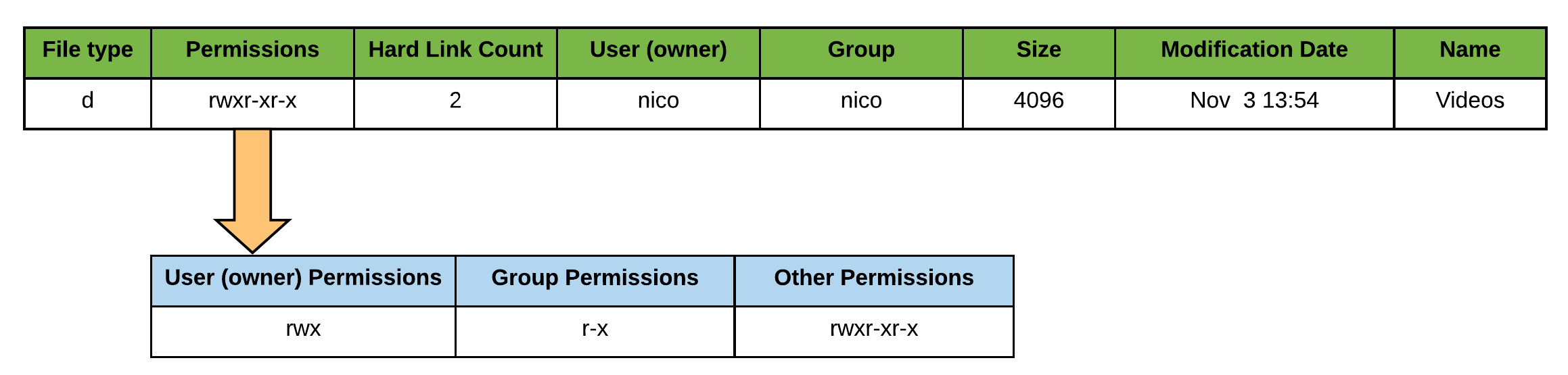
The first character (prefixing the permissions) contains the file type and can be one of these:
-: regular filed: directory (a file of a specific format that lists other files)l: a hard or soft link (basically a shortcut to another file)c: a character device fileb: a block device filep: a pipe files: a socket file
The next ten characters display the permissions or filemode of the file. These determine the permissions the owner, group and others have on the file or directory.
Next is the hard link count field. This field counts how many links exist to this directory. This is at least two and one extra for each subdirectory.
- Any object in the file system must have a directory entry that connects it into the file system. For example, if you have a directory like "/tmp", there's a pointer in the root directory ("/") that points to the "tmp" directory entry. So that gives you one link.
- Every directory contains the "." link that points back to itself. So that gives the minimum value of 2 links per directory.
- Every subdirectory has a ".." link that points back to its parent, incrementing the link count on the parent directory by one for each subdirectory created.
The following part contains the user that owns the file. By default, users will own the files that they create. While this ownership can be changed, this function requires administrative privileges.
Next is the group on which the group permissions are applied. Members of this group will have these permissions applied when they want to access the file/directory. By default, the primary group of the user who creates the file will be the group owner of any new files. Users are allowed to change the group owner of a file to any group that they belong.
After the group comes the file size in bytes (unless you provided the
-hflag tolsto request human readable file sizes). For directories this does not actually describe the total size of the directory, but rather how many bytes are reserved to track the filenames in the directory.The second to last field is the modification timestamp which indicates when the file was last modified. In case of a directory, this timestamp reflects the last time a file was added or deleted.
Directory Link Counts and Hidden Directories
Interesting dissection on where the link count comes from Directory Link Counts and Hidden Directories.
Even more detailed information about a file can be obtained using the stat command.
[bioboost@linux][~]$ stat .bashrc
Output
  File: .bashrc
  Size: 3772      	Blocks: 8          IO Block: 4096   regular file
Device: 832h/2098d	Inode: 3801091     Links: 1
Access: (0644/-rw-r--r--)  Uid: ( 1000/bioboost)   Gid: ( 1000/bioboost)
Access: 2021-08-18 18:57:43.786283781 +0200
Modify: 2021-08-18 18:57:41.274355523 +0200
Change: 2021-08-18 18:57:41.274355523 +0200
 Birth: -
About Ownership and Permissions
As can be seen from the serious section, each and every file is owned by a single user and a single group, and has its own access permissions.
The following image shows a break down of the filemode column into its components.
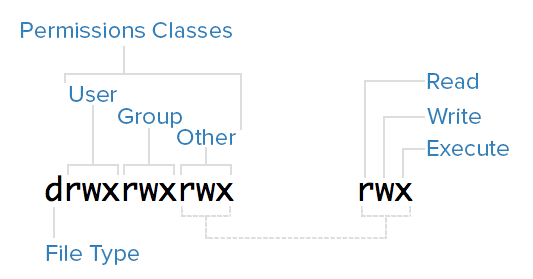
The next 9 characters make up the permission classes, namely user (owner), group, and other. The order of the classes is consistent across all Linux distributions.
- User: The owner of a file belongs to this class
- Group: The members of the file's group belong to this class
- Other: Any users that are not part of the user or group classes belong to this class.
The next thing to pay attention to are the sets of three characters, or triads, as they denote the permissions, in symbolic form, that each class has for a given file.
In each triad, read, write, and execute permissions are represented in the following way:
- Read: Indicated by an
rin the first position - Write: Indicated by a
win the second position - Execute: Indicated by an
xin the third position.
A hyphen (-) in the place of one of these characters indicates that the respective permission is not available for the respective class.
Here is a quick breakdown of the access that the three basic permission types grant
Read
- For a normal file, read permission allows a user to view the contents of the file.
- For a directory, read permission allows a user to view the names of the files in the directory.
Write
- For a normal file, write permission allows a user to modify and delete the file.
- For a directory, write permission allows a user to delete the directory or modify its contents (create, delete, and rename files in it).
Execute
- For a normal file, execute permission allows a user to execute a file (the user must also have read permission). As such, execute permissions must be set for executable programs and shell scripts before a user can run them.
- For a directory, execute permission allows a user to access, or traverse, into (i.e.
cd) and access metadata about files in the directory (the information that is listed in anls -l).
Something to note is that even though many permissions combinations are possible, only certain ones make sense in most situations. For example, write or execute access is almost always accompanied by read access, since it's hard to modify, and impossible to execute, something you can't read.
Let's see some examples
| File Type | Permissions | User | Group | Description |
|---|---|---|---|---|
- | rw------- | mark | developers | mark (the owner of the file) can read the file and write to it. The developers group and others have no permissions on the file. |
- | rwxr-x--- | mark | developers | mark (the owner of the file) has full control over the file (including execution). The users of the group developers can read and execute the file. others have no permissions on the file. |
d | rwxr-x--- | mark | www-data | mark (the owner of the directory) has full control. The www-data group users can read and traverse the directory but cannot create files in it. others have no permissions in this directory. |
d | rwx--x--- | mark | developers | mark (the owner of the file) has full control over the file (including execution). The users of the group developers can traverse to the directory using cd but cannot list the content of the directory using ls. |
d | rwx-wx--- | mark | developers | mark (the owner of the directory) has full control. The users of the group developers can traverse to the directory using cd but cannot list the content of the directory using ls. They can however create and delete files in the directory. developers can even delete files they do not have read or write access to, as long as the user knows the name of the file. |
d | rwxrw--- | mark | developers | mark (the owner of the directory) has full control. developers can list the directory content but cannot traverse to it using cd or access any of its files. |
Read but not Traverse
While a bit weird, the permissions --x do not allow the user to list the content of the directory, it does however not restrict access to existing files. Another example of this is an upload directory which is often given the permissions -wx. This allows you to traverse to the directory and create new files. However you can only access files you know of, because you can't list the existing files inside of the directory.
As you may have noticed, the owner of a file usually enjoys the most permissions, when compared to the other two classes. Typically, you will see that the group and other classes only have a subset of the owner's permissions (equivalent or less).
Changing Ownership
To change the ownership of files and directories the chown (change owner) and chgrp (change group) commands can be used. However many linux user will often use the chown command to do both these tasks.
To change the owner of a file, use the chown command followed by the new owner and the file you wish to change. For example to set mark as the owner of the file /tmp/test.txt, execute:
[bioboost@linux][~]$ chown mark /tmp/test.txt
This command can also be used to change the group. In this case the name of the group needs to be prefixed with a color : as shown in the next example.
[bioboost@linux][~]$ chown :teachers /tmp/test.txt
To change both the owner and group separate both using a colon :.
[bioboost@linux][~]$ chown mark:teachers /tmp/test.txt
All these commands can also be executed recursively by adding -R as an argument. This will change the owner, group or mode (according to the issued command) for the given directory and all files and other directories inside that specified directory. Be careful when using the recursive argument as it can really mess up your day, especially in combination with the sudo prefix.
Temporary Files
If you wish to experiment with file permissions, feel free to create some files and directories below /tmp. No harm to experiment there. Restarting the system will remove all the files and reset the temporary filesystem.
Changing Permissions
On Linux and other Unix-like operating systems, there is a set of rules for each file which defines who can access that file, and how they can access it. These rules are called file permissions or file modes. The command chmod stands for "change mode", and it is used to define the way a file can be accessed.
In general, the chmod command take the following form:
chmod <options> <permissions> <filenames>
Permissions define the permissions for the owner of the file (the "user"), members of the group who own the file (the "group"), and anyone else ("others"). There are two ways to represent these permissions: with symbols (alphanumeric characters), or with octal numbers (the digits 0 through 7).
Symbolic
The chmod has a really user friendly approach for changing user permissions. All you need to do is specify the class (user, group or others), the type of change (adding, removing or setting the permissions) and the permissions themselves (read, write or execute). This can all be done using a symbolic approach.
- The letters
u,g, andostand for "user", "group", and "other". - The equals sign
=means "set the permissions exactly like this" - The equal sign can also be replaced by a plus sign
+or a minus sign-. This respectively adds the permissions or removes permissions for the user, group or others. - The letters
r,w, andxstand for "read", "write", and "execute", respectively. - The commas separate the different classes of permissions, and there are no spaces in between them.
The next table shows some examples.
| Command | Description |
|---|---|
chmod g+w /tmp/file | Add write permissions for the group |
chmod g-x /tmp/file | Remove executions permissions from the group |
chmod ugo+r /tmp/file | Give the owner, group and others read permissions |
chmod u+rwx,g-x,o-rwx /tmp/file | Give the owner all the permissions, take away the execute permissions for the group and give none to the rest. |
chmod u=rw,g=rw,o=r /tmp/file | Give the owner read and write permissions, same as the group and leave other wist just read permissions |
Octal numbers
In this case an octal value specifies the permissions for each class. Here the digits 7, 5, and 4 each individually represent the permissions for the user, group, and others, in that order. Each digit is a combination of the numbers 4, 2, 1, and 0:
4stands for "read",2stands for "write",1stands for "execute", and0stands for "no permission."
For example:
chmod 700 /tmp/filewill result inrwx------chmod 744 /tmp/filewill result inrwxr--r--chmod 664 /tmp/filewill result inrw-rw-r--
Special Permissions
Special permissions make up a fourth access level in addition to user, group, and other. Special permissions allow for additional privileges over the standard permission sets. There is a special permission option for each access level.
User level
Commonly noted as SUID, the special permission for the user access level has a single function: A file with SUID always executes as the user who owns the file, regardless of the user passing the command. If the file owner doesn't have execute permissions, then use an uppercase S here.
Now, to see this in a practical light, let's look at the /usr/bin/passwd command. This command, by default, has the SUID permission set:
[bioboost@linux][~]$ ls -l /usr/bin/passwd
Output
-rwsr-xr-x 1 root root 68208 Jul 15 00:08 /usr/bin/passwd
Note the s where x would usually indicate execute permissions for the user.
Group level
Commonly noted as SGID, this special permission has a couple of functions:
- If set on a file, it allows the file to be executed as the group that owns the file (similar to
SUID). - If set on a directory, any files created in the directory will have their group ownership set to that of the directory group.
This permission set is noted by a lowercase s where the x would normally indicate execute privileges for the group. It is also especially useful for directories that are often used in collaborative efforts between members of a group. Any member of the group can access any new file. This applies to the execution of files, as well.
Let us take a look at an example (assuming we have a user called dennis)
[bioboost@linux][~]$ cd /tmp
[bioboost@linux][~]$ mkdir uploads
[bioboost@linux][~]$ cd uploads
[bioboost@linux][~]$ chmod g+s,o+w .
[bioboost@linux][~]$ chown root .
[bioboost@linux][~]$ ls -al
Note that we also allow anyone to create files in this directory and that we set the owner to root to show that the directory group is used.
Output
total 8
drwxrwsrwx  2 root bioboost 4096 Okt 12 15:47 .
drwxrwxrwt 24 root root     4096 Okt 12 15:45 ..
Now let's login using dennis and create some files:
[bioboost@linux][~]$ touch hello
[bioboost@linux][~]$ ls -al
Output
total 8
drwxrwsrwx  2 root   bioboost 4096 Okt 12 15:48 .
drwxrwxrwt 24 root   root     4096 Okt 12 15:47 ..
-rw-rw-r--  1 dennis bioboost    0 Okt 12 15:48 hello
Note how the user of hello is still dennis, but the group is the same - bioboost - as that of the parent directory.
If the owning group does not have execute permissions, then an uppercase S is used.
Other level
The last special permission has been dubbed the sticky bit. This permission does not affect individual files. However, at the directory level, it restricts file deletion. Only the owner (and root) of a file can remove the file within that directory. A common example of this is the /tmp directory:
[bioboost@linux][~]$ ls -al /tmp
Output
total 132
drwxrwxrwt 24 root     root      4096 Okt 12 15:51 .
...
The permission set is noted by the lowercase t, where the x would normally indicate the execute privilege.
Setting special permissions
To set special permissions on a file or directory, you can utilize either of the two methods outlined for standard permissions above: Symbolic or numerical.
Let's assume that we want to set SGID on the directory /var/www-data/uploads.
To do this using the symbolic method, we do the following:
[bioboost@linux][~]$ chmod g+s /var/www-data/uploads
Using the numerical method, we need to pass a fourth, preceding digit in our chmod command.
The syntax is:
[bioboost@linux][~]$ chmod X### file
Where X is the special permissions digit. This digit is defined similarly to the standard permission digits:
SUID:4SGID:2Sticky:1
Taking the previous example:
[bioboost@linux][~]$ chmod 2770 /var/www-data/uploads